Logging on to the administration tool

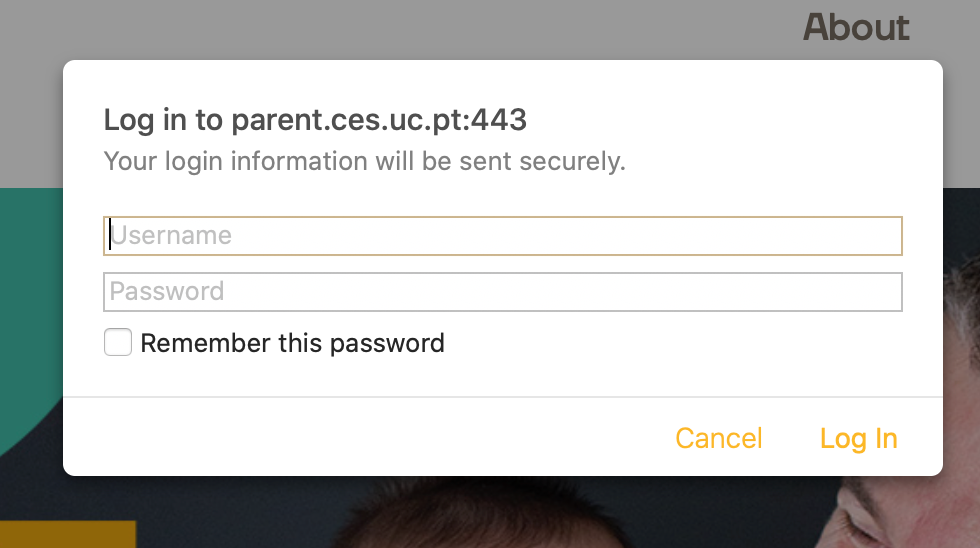
  1. Log in on the Admin page.
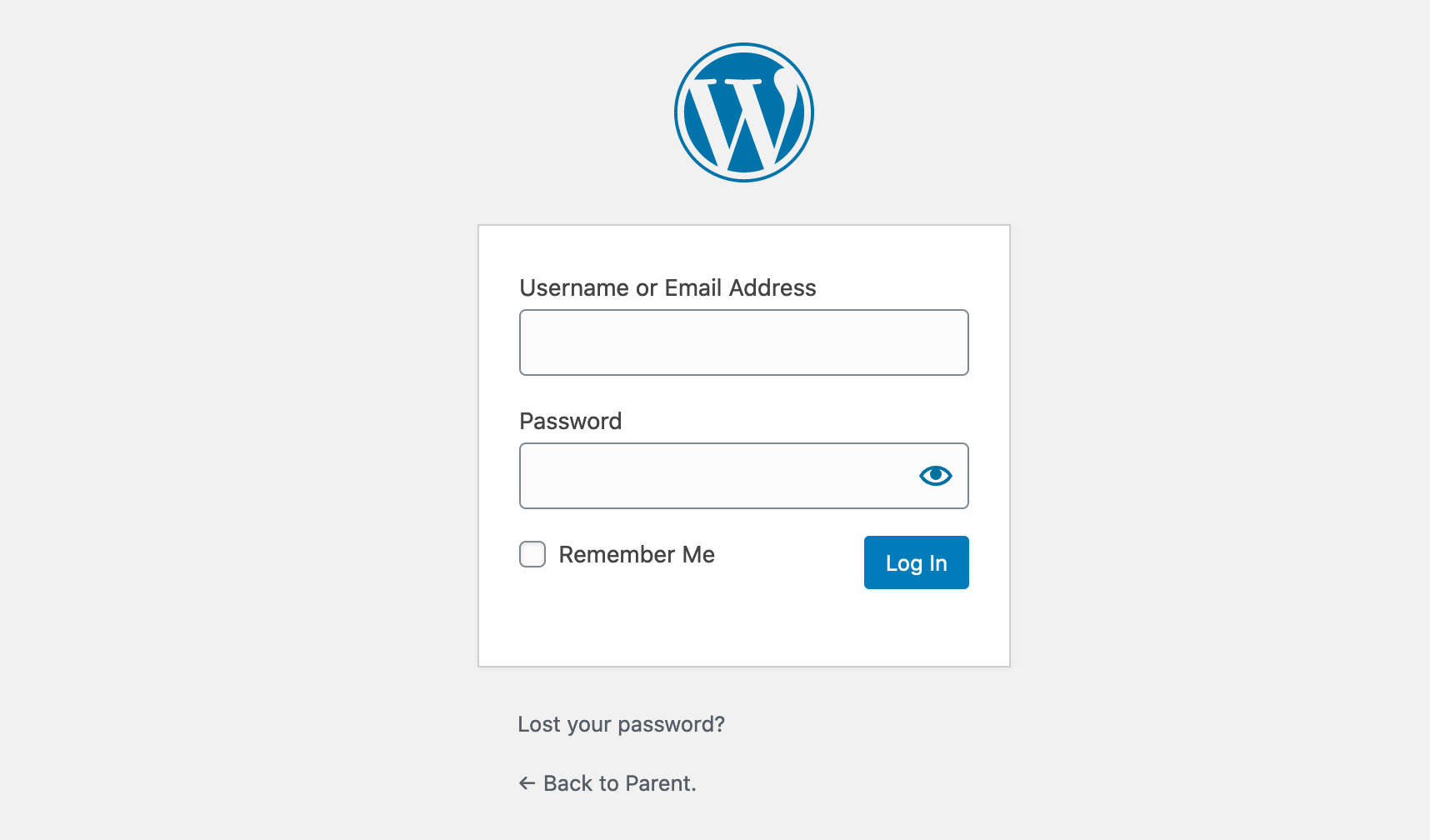
  2. For security reasons you may have to login twice. Use the first user/password and than your e-mail and password

Type the general user/password here
Type your personal user/password here
Publishing a Photo


  1. Click on RESOURCES
  2. Choose ADD NEW
  3. Type the photo name. You can also add a descriptive text about the photo (optional).
  4. Click on ADD BLOCK and choose FILE
  5. Click on UPLOAD and select the file you want to upload on your computer.
  6. Scroll down anf fill the RESOURCE INFORMATIONS fields below. (optional)
    1. Place of publication
    2. Date of publication
    3. Resource Author
  7. IMPORTANT: On the DOCUMENT Tab select:
    1. Resource Type: Mark the Photos option.
    2. Countries: Select one of the countries
  8. You can also add a FEATURED IMAGE (it will show as THUMBNAIL).
    1. Click on the "SET FEATURED IMAGE FOR THIS RESOURCE” Square
    2. Upload a new image or choose one from the media library.
  9. If you want you can add an short version of the text on EXCERPT. This text will be displayed on the resources índex page.
  10. Click on PREVIEW or PUBLISH

Publishing a Tool or Publication


  1. Click on RESOURCES
  2. Choose ADD NEW
  3. Type the tool of publication name. You can also add a descriptive text about the document (optional).
  4. Click on ADD BLOCK and choose FILE
  5. Click on UPLOAD and select the file you want to upload on your computer.
  6. Scroll down anf fill the RESOURCE INFORMATIONS fields below. (optional)
    1. Place of publication
    2. Date of publication
    3. Resource Author
  7. IMPORTANT: On the DOCUMENT Tab select:
    1. Resource Type: Mark one of the options (Publications or Tools)
    2. Countries: Select one of the countries
  8. You can also add a FEATURED IMAGE (it will show as THUMBNAIL).
    1. Click on the "SET FEATURED IMAGE FOR THIS RESOURCE” Square
    2. Upload a new image or choose one from the media library.
  9. If you want you can add an short version of the text on EXCERPT.
  10. Click on PREVIEW or PUBLISH
  11. Check if the document was published and if everything is ok. You can also EDIT the page if necessary.

Publishing a News Article (In The News)


  1. Click on RESOURCES
  2. Choose ADD NEW
  3. Type the news aticle title. You can add a descriptive text or the full original article text.
  4. To add a link to the original article click on ADD BLOCK and choose BUTTON
  5. Write READ MORE as button label and add the article URL as link.
  6. If you want to add an image to the article click on ADD BLOCK and choose IMAGE.
  7. Scroll down anf fill the RESOURCE INFORMATIONS fields below. (optional)
    1. Place of publication
    2. Date of publication
    3. Resource Author
  8. IMPORTANT: On the DOCUMENT tab select:
    1. Resource Type: check the IN THE NEWS option.
    2. Countries: Select one of the countries
  9. You can also add a FEATURED IMAGE (it will show as THUMBNAIL).
    1. Click on the "SET FEATURED IMAGE FOR THIS RESOURCE” Square
    2. Upload a new image or choose one from the media library.
  10. If you want you can add an short version of the text on EXCERPT.
  11. Click on PREVIEW or PUBLISH
  12. Check if the article was published and if everything is ok. You can also EDIT the page if necessary.

Publishing a Video


  1. Click on RESOURCES
  2. Choose ADD NEW
  3. Type the video title. You can add a descriptive text.
  4. Click on ADD BLOCK and choose VIDEO.
  5. Choose INSERT FROM URL.
  6. Copy the video address from the video (from Youtube or Vimeo).
  7. Scroll down anf fill the RESOURCE INFORMATIONS fields below. (optional)
    1. Place of publication
    2. Date of publication
    3. Resource Author
  8. IMPORTANT: On the DOCUMENT tab select:
    1. Resource Type: check the VIDEOS option.
    2. Countries: Select one of the countries
  9. You can also add a FEATURED IMAGE (it will show as THUMBNAIL).
    1. Click on the "SET FEATURED IMAGE FOR THIS RESOURCE” Square
    2. Upload a new image or choose one from the media library.
  10. If you want you can add an short version of the text on EXCERPT.
  11. Click on PREVIEW or PUBLISH
  12. Check if the article was published and if everything is ok. You can also EDIT the page if necessary.

General information about images and files

All images should to be:

  • JPG, PNG or GIF file formats.
  • RGB color format (no CMYK, that is a print format).
  • Preferably with 150 or 72 dpi resolution.
  • File size under 6mb

All other files should to be:

  • Under 10mb file size.